Every Dokly site uses one of two layouts:
- Docs. A sidebar on the left, a table of contents on the right. Right for product and API documentation.
- Help center. A search-first homepage and short, focused articles. Right for customer support content.
Choosing the layout#
You pick a layout when you create a site. To change it later, open your project's Settings → General, pick Docs or Help center under Layout, and click Save changes. Your pages stay the same; only how they're shown changes.
Your AI agent can also switch the layout for you over MCP.
The homepage#
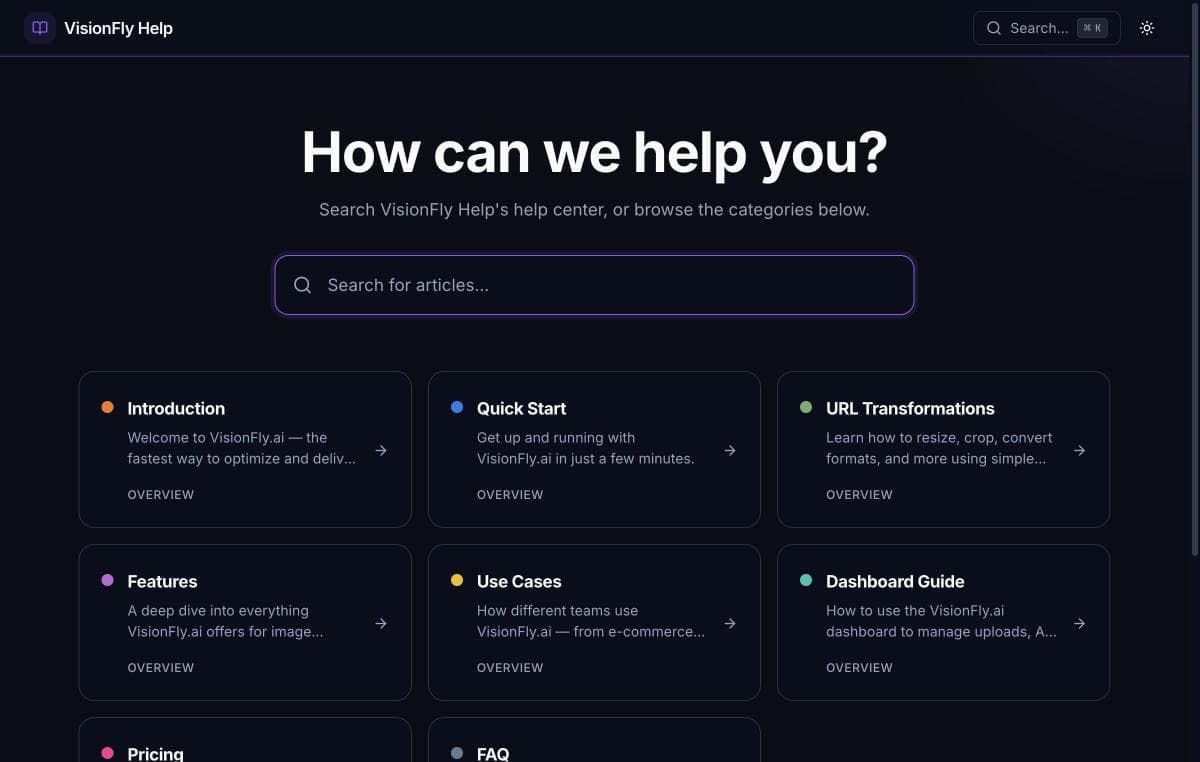
The help-center homepage has:
- A search box at the top, for searching every published article.
- Category cards, one for each top-level page, with the number of articles under it. Clicking a card opens that page.
The tagline under the heading comes from your project's description in Settings → General.
Article pages#
Every other page is shown as an article:
- A breadcrumb trail at the top, starting from Home.
- A larger title, with the page description as a lead paragraph.
- No sidebar and no table of contents, so keep articles short enough to skim.
- A Was this article helpful? widget under the body. Dokly records each answer.
- A Related articles list with the other pages in the same category.
Organizing a help center#
Use top-level pages as categories ("Getting started", "Billing", "Account") and put articles under them as sub-pages. A new help-center site starts with a "Getting started" page to show the shape.
To add an article, hover a category in the page tree and click Add sub-page. See Pages & navigation.