If your docs already live next to your code as Markdown, Git sync pulls them into your Dokly site. The repo is the source of truth: each .md or .mdx file in your docs folder becomes a page.
Connect a repo#
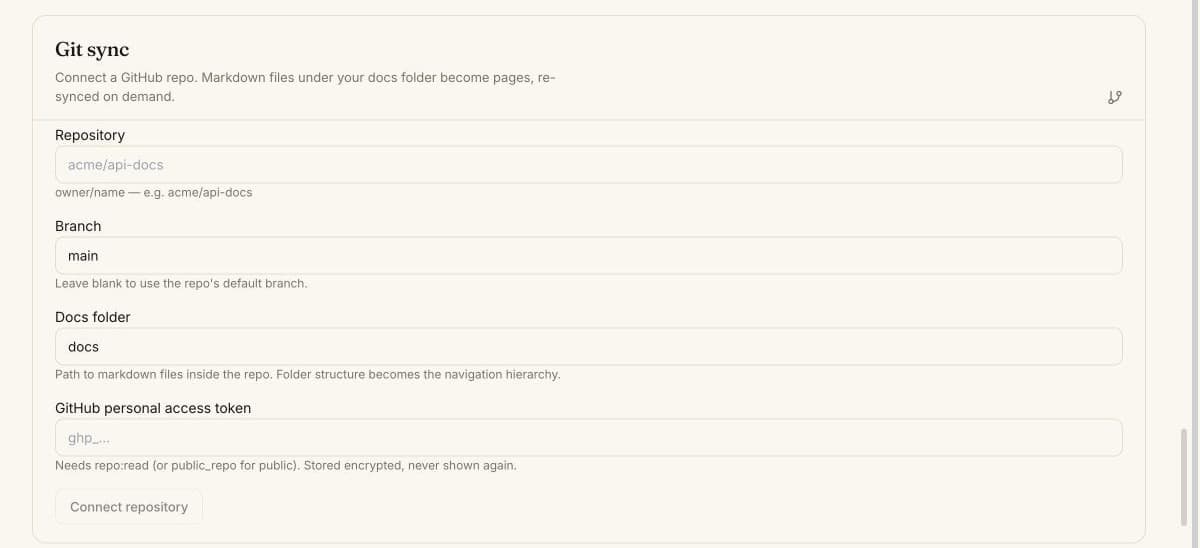
In your project's Settings → Git sync, fill in:
| Field | Description |
|---|---|
| Repository | owner/name, e.g. acme/api-docs. |
| Branch | Leave blank to use the repo's default branch. |
| Docs folder | The folder that holds your Markdown files, e.g. docs. |
| GitHub personal access token | Needs read access to the repo (public_repo is enough for a public repo). It's stored encrypted and never shown again. |
Click Connect repository. Dokly checks the repo and token before saving.
Sync#
Click Sync now. Dokly reads every .md and .mdx file under your docs folder and:
- creates a page for each new file,
- updates the page for each file that already synced,
- deletes pages whose file is gone from the repo.
When it's done you see how many files were processed, created, updated and deleted, plus any files it couldn't read. Pages you created in the dashboard are never touched.
The repo wins
A synced page is overwritten on the next sync. Make changes in the repo, not in the Dokly editor, or they'll be lost.
Frontmatter#
Each file can set these fields in its frontmatter:
| Field | Default if missing |
|---|---|
title | The file's first # Heading, or its file name |
slug | The file's path inside the docs folder, with slashes and other characters turned into hyphens: guides/setup.md becomes guides-setup. Set slug to keep slashes. |
description | None |
published | true. Set published: false to sync a file as a draft. |
order | Placed after pages that set an order |
---
title: Authentication
slug: guides/authentication
description: How to get and use an API key.
order: 2
---
Synced pages are added at the top level of your page tree.
Sync on every push (optional)#
To sync automatically, add a webhook in your GitHub repo under Settings → Webhooks → Add webhook. Copy the Payload URL and Secret from the Auto-sync on push panel in Git sync, set the content type to application/json, and choose Just the push event.
Only pushes to the branch you connected trigger a sync. If a push doesn't sync, GitHub's Recent Deliveries tab for the webhook shows what happened.
Draft docs from your repo with AI#
The Git sync section also has Draft docs from this repo. It reads your existing Markdown and uses AI to restructure it into new draft pages for you to edit. It costs 50 AI credits. The drafts are separate from synced pages.
Disconnect#
- Disconnect (keep pages) stops syncing and leaves the synced pages in place.
- Disconnect & delete synced pages also deletes every page that came from the repo. Pages you created in the dashboard aren't touched.