Nothing reaches your readers until a page is published. This page covers the tools for checking a change before it goes live, whether you wrote it or your AI agent did.
Drafts and published pages#
Every page is either published (live on your site) or a draft (only visible in the dashboard). Drafts show a Draft label in the page tree.
- Pages you create in the editor are published by default. To keep one as a draft, open page settings (the gear in the toolbar) and switch Published off.
- Pages your agent creates arrive as drafts, unless the agent publishes them itself. See Your agent's changes below.
Diff and Split views#
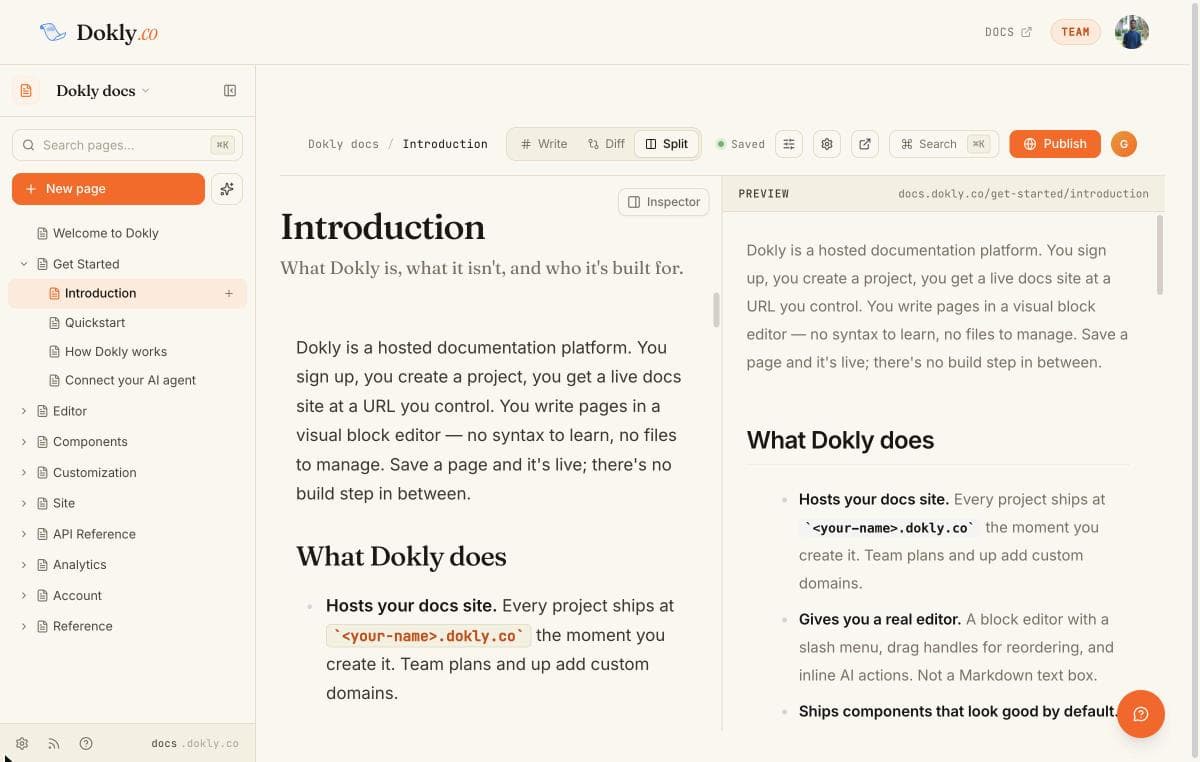
The editor toolbar has three views:
| View | What it shows |
|---|---|
| Write | The editor. |
| Diff | A line-by-line diff of your edits since you last saved. Available once you've changed something. |
| Split | The editor on the left and a rendered preview on the right. |
While you have unsaved edits, a dock in the bottom right offers Review (opens the Diff view) and Publish.
Publishing#
Click Publish in the toolbar. You see a summary of what changed, then confirm. Dokly saves the page, marks it published, refreshes the cached copy, and shows you the live URL.
Your agent's changes#
When your AI agent is connected over MCP:
- New pages are saved as drafts. You publish them, or the agent publishes them if you allowed it to.
- Edits to a live page are saved as a proposal. Readers keep seeing the current version until the proposal is approved.
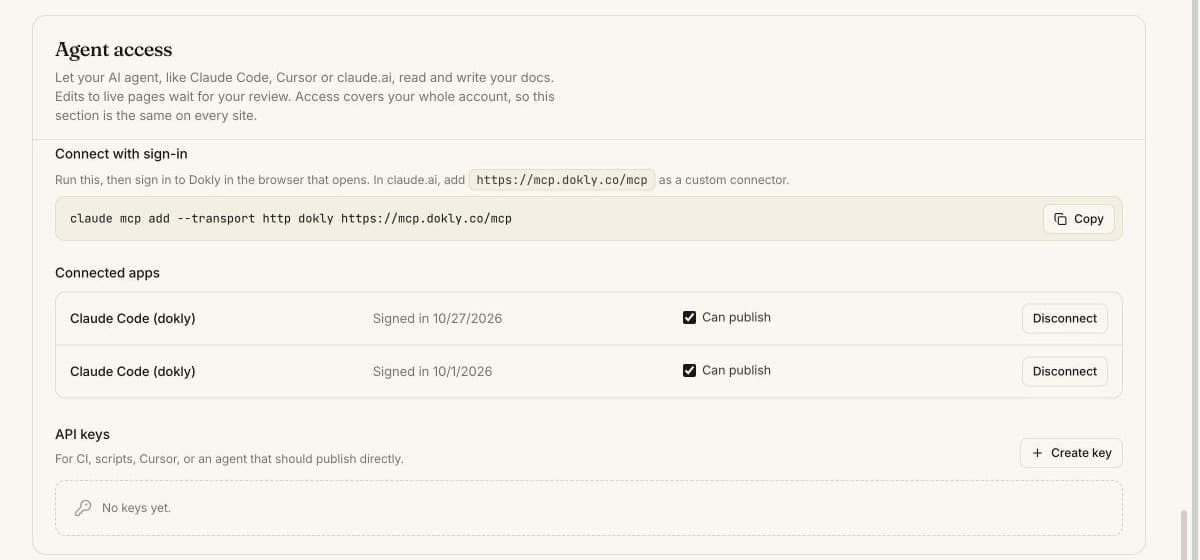
An agent can publish and approve only if two things are true: you gave that agent permission to publish, and your plan allows it (Starter and up). On Free, the agent writes drafts and proposals and you publish them.
Approve in the dashboard#
Open the page in the editor. A banner at the top says "An agent proposed changes to this live page." Click Review to see the diff against the live page, plus any change to the title, description or published state. Then click Approve and publish or Reject.
Approve and publish replaces the page body, so it's disabled while you have unsaved edits in the editor. Save first.
Approve from the conversation#
Ask your agent to show pending changes. It lists them with a diff, and can approve or reject each one. Dokly tells the agent to show you the diff and wait for your explicit yes before approving, and only agents with publish permission can approve at all.
You choose what each agent may do in your project's Settings → Agent access. See Connect your AI agent for the details.