Every Dokly site has a changelog at /changelog, for example acme.dokly.co/changelog. It lists your published entries, newest first, and has a feed readers can subscribe to.
Writing an entry in the dashboard#
Open your project and click Changelog in the project toolbar (or the changelog link at the bottom of the page tree). This opens /dashboard/<your project>/changelog.
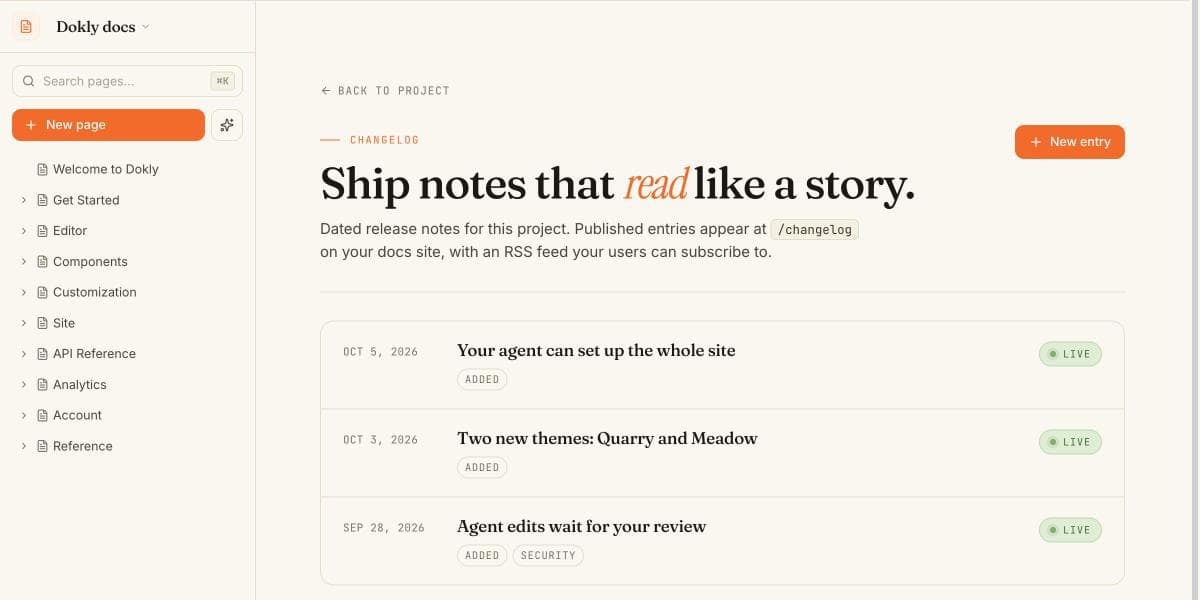
Click New entry and fill in:
| Field | Description |
|---|---|
| Title | The entry's headline, e.g. "Search overhaul". |
| Date | The release date. Defaults to today. Entries are sorted by this date. |
| Version | Optional. A three-part version like 1.2.0. |
| Tags | Any of Added, Fixed, Changed, Removed, Security. |
| Body | The details, in MDX. Headings, lists, code, and components all work. |
The switch at the bottom sets the entry to Published (on your changelog page and feed) or Draft (saved but hidden from readers). Click Create entry to save.
To edit an entry, click it in the list, make your changes, and click Save changes. To delete it, click Delete, then Confirm delete.
Letting your agent write it#
If your AI agent is connected over MCP, ask it to write the changelog for a release. It already has the commits and the diff, so it can draft the entry and add it to your changelog.
Entries from your agent are saved as drafts, unless you've allowed that agent to publish and your plan includes publishing (Starter and up). See Connect your AI agent.
The RSS feed#
Your changelog has a feed at /changelog/feed.xml, and the changelog page links to it with Subscribe via RSS. Published entries appear in the feed; drafts don't.
Linking to your changelog#
The changelog isn't added to your site's sidebar automatically. Link to /changelog from your homepage or any other page so readers can find it.
Writing release notes on a regular page#
If you'd rather keep release notes inside a normal docs page, use the Update component (/update in the slash menu). Each Update gets its own heading and anchor link.